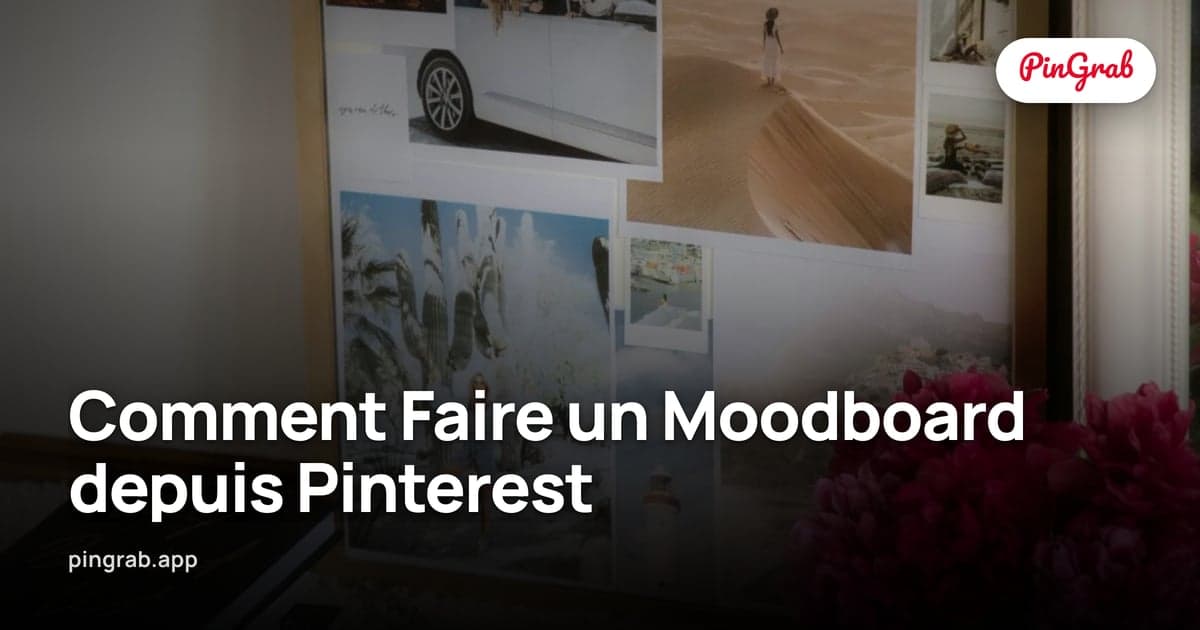
Un moodboard rassemble 15 à 30 images qui, ensemble, expriment « voici l'ambiance » — l'esthétique, la palette, les textures, le ressenti — sans avoir à rédiger un seul mot de brief créatif. Les designers les utilisent pour lancer des projets clients, les photographes pour orienter leurs shootings, les auteurs pour définir l'univers de leurs personnages. Pinterest est l'endroit où la plupart des gens trouvent leurs images pour créer un moodboard, mais Pinterest seul n'est pas un outil de moodboard : il affiche les épingles dans un flux défilant, pas dans une grille composée. Ce guide explique comment prendre l'inspiration brute de Pinterest et la transformer en un tableau cohérent, partageable et imprimable — avec des outils gratuits et un workflow simple.
Ce qui fait un bon moodboard
Avant la question des outils, la question de la curation. L'erreur la plus fréquente avec les moodboards est de les traiter comme une collection d'ambiance — en déversant chaque épingle qui correspond vaguement au thème. Cela produit du bruit, pas une direction.
Les bons moodboards sont édités. Trois principes :
- Une idée par tableau. Si vous créez un moodboard pour un projet de marque, c'est le tableau de cette marque. Une deuxième marque, c'est un deuxième tableau. Mélanger dilue les deux.
- Variété dans un thème. 9 images qui sont toutes des photos produit de la même catégorie, c'est ennuyeux. Mélangez une photo produit, un détail de texture, un nuancier de couleurs, une scène de style de vie, un exemple typographique, une référence architecturale. Chaque image porte une pièce différente de l'histoire.
- Moins, c'est plus net. 9 images (3×3) ou 12 (3×4), c'est généralement juste. Au-delà de 20, le spectateur cesse de le traiter comme une composition et commence à voir une grille.
Étape 1 : créer un moodboard pinterest
Créez un tableau dédié. Épinglez librement pendant un ou deux jours — 40, 50, 100 épingles. Ensuite, triez : désépinglez tout ce qui est redondant, hors ton ou simplement correct. Vous voulez que chaque épingle restante joue un rôle distinct.
Une fois le tableau réduit à 15–30 épingles solides, vous êtes prêt à exporter.
Étape 2 : télécharger les épingles
Pour un tableau entier, installez l'Extension Chrome PinGrab et exportez le tableau en ZIP d'images individuelles — le guide du téléchargeur de tableau détaille le processus.
Pour un tableau rapide de 6 à 9 images, le guide de téléchargement d'images suffit : récupérez chaque épingle manuellement, en les sauvegardant dans un seul dossier. Les noms de fichiers seront des hachages ; renommez au fur et à mesure (ex. `01-photo-produit.jpg`, `02-texture.jpg`) pour contrôler l'ordre de la grille plus tard.
Étape 3 : composer le tableau
C'est là que le Créateur de Vision Board gratuit de PinGrab entre en jeu. Ouvrez-le dans votre navigateur, choisissez un modèle de grille (2×2, 3×3, 3×4, 3×5), et glissez vos images. L'outil gère le recadrage automatiquement tout en vous laissant ajuster la position de l'image dans chaque cellule.
Modèles de grille et quand les utiliser :
- 2×2 (4 images) : tableaux d'inspiration héros. Une image par grand concept.
- 3×3 (9 images) : le standard — assez d'espace pour la variété sans étalement.
- 3×4 (12 images) : excellent pour les lookbooks avec un peu plus d'étendue.
- 3×5 (15 images) : près de la limite supérieure ; fonctionne pour les grandes présentations où le tableau sera projeté.
Si les modèles intégrés ne correspondent pas à votre besoin, réorganiser les images dans l'ordre des noms de fichiers avant l'import est le moyen le plus rapide de contrôler la composition — PinGrab affiche dans l'ordre des noms de fichiers.
Étape 4 : exporter pour le bon contexte
- PNG — sans perte, fichier plus volumineux. Idéal pour le partage numérique où la qualité compte (Figma d'équipe design, Slack client).
- JPEG — plus petit, différence de qualité imperceptible pour les tableaux riches en photographie. Idéal pour les pièces jointes email ou l'intégration dans une présentation.
- PDF — prêt à imprimer, préserve la netteté à toute taille de page. Idéal pour l'impression physique ou la présentation sur papier.
Pour l'impression, le Créateur de Vision Board prend en charge les formats A4 et Lettre à 300 DPI. C'est suffisant pour une impression de bureau standard et pour encadrer physiquement un tableau si c'est votre truc. Pour d'autres dimensions courantes, la référence des tailles d'images Pinterest contient la répartition complète.
Étape 5 : partager et itérer
Les moodboards sont des outils de collaboration. Exportez, partagez, recueillez les retours (« l'image en bas à droite est hors ton »), échangez des images, ré-exportez. La boucle d'itération rapide est ce qui rend un moodboard utile — ce n'est pas un livrable final, c'est un langage partagé.
À propos des droits d'auteur
Les moodboards pour référence personnelle ou usage interne d'équipe design relèvent pleinement du fair use / usage personnel. Les moodboards partagés en externe (avec des clients, dans des présentations publiques, sur un site web) devraient créditer les créateurs des images lorsqu'ils sont connus, ou être compris comme des références d'inspiration plutôt que du travail publié. Le guide du copyright Pinterest couvre cela plus en détail.
Lectures connexes
Pour les mécanismes techniques derrière chaque étape, consultez le guide de téléchargement d'images, le guide de téléchargement de vidéos et le guide du téléchargeur de tableau. Pour les dimensions d'images et les spécifications de taille de Pinterest, le guide des tailles est la référence.